Complete Buyer Manual
TeleCore documentation for installation, daily operation, and troubleshooting.
This guide is not only an installation checklist. It explains what every main menu does, how to prepare Telegram API access,
how to create campaigns, how to use templates and target lists, how to run workers, and how to solve common hosting and activation issues.
InstallServer, database, .env, activation
OperateCampaigns, templates, targets
WorkersQueue, cron, Python engine
SupportTroubleshooting KB + bot-ready content
Server Requirements
Check these requirements before installation. Most support tickets happen because one of these requirements is missing or misconfigured.
| Requirement | Recommended | Why it matters |
|---|
| PHP | PHP 8.2 or newer | Required for the Laravel application runtime. |
| PHP extensions | mbstring, openssl, pdo, pdo_mysql, tokenizer, xml, curl, fileinfo, json, bcmath, ctype, zip | Missing extensions can break Composer, uploads, license activation, or installation. |
| Archive tools | PHP zip extension enabled, or unzip / 7-Zip available | Required to extract the package reliably. |
| Composer HTTPS | Valid CA certificate bundle configured for Composer/cURL HTTPS | Prevents SSL certificate / cURL error 60 failures. |
| Database | MySQL 5.7+ or MariaDB 10.4+ | Required for users, campaigns, logs, settings, and license cache. |
| Document root | Point domain to the public directory | Wrong document root causes 404, blank pages, or exposed files. |
| Writable folders | storage and bootstrap/cache | Required for logs, cache, sessions, compiled views, and uploads. |
| Cron | Runs every minute | Required for scheduled jobs. |
| Queue worker | Supervisor/systemd/hosting process manager | Required for background operations. |
| Python | Python 3.10+ recommended | Required for Telegram engine operations when enabled. |
Required note: PHP zip extension must be enabled, or unzip / 7-Zip must be available. Composer HTTPS must also have a valid CA certificate bundle.
Installation
Follow these steps in order. Do not skip the environment checks.
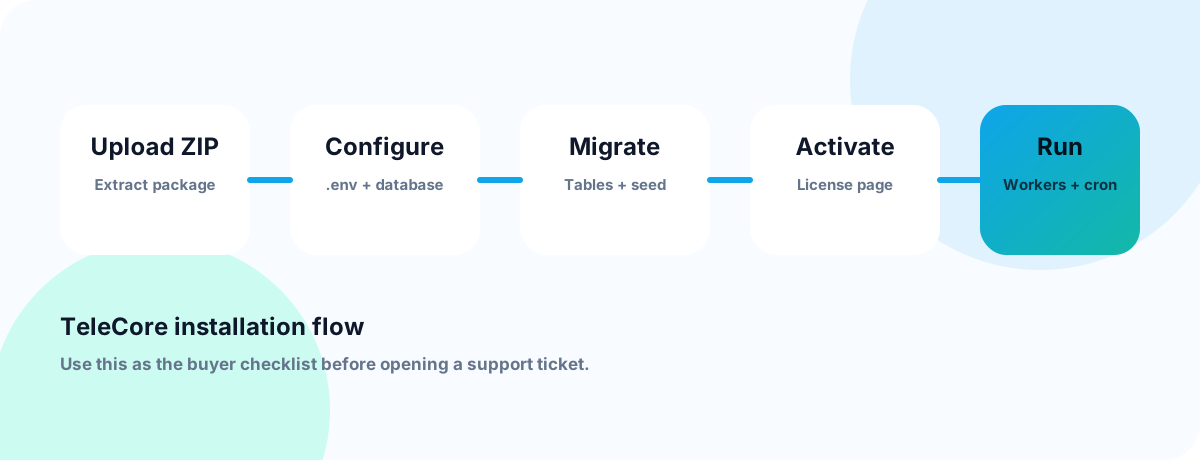
Installation checklist
1
Upload the package to your hosting or VPS.
2
Extract the ZIP using File Manager, unzip, 7-Zip, or PHP zip support.
3
Create a MySQL/MariaDB database and database user.
4
Copy .env.example to .env and configure APP_URL and database values.
5
Generate APP_KEY and run migrations.
6
Activate your license from the activation page.
7
Configure cron, queue worker, and Telegram engine where required.
Useful install commands
php artisan key:generate
php artisan migrate --force
php artisan db:seed --force
php artisan storage:link
php artisan optimize:clear
Some shared hosts do not allow shell commands. In that case, use the hosting control panel, installer flow, or ask your host to enable the required tools.
License Activation
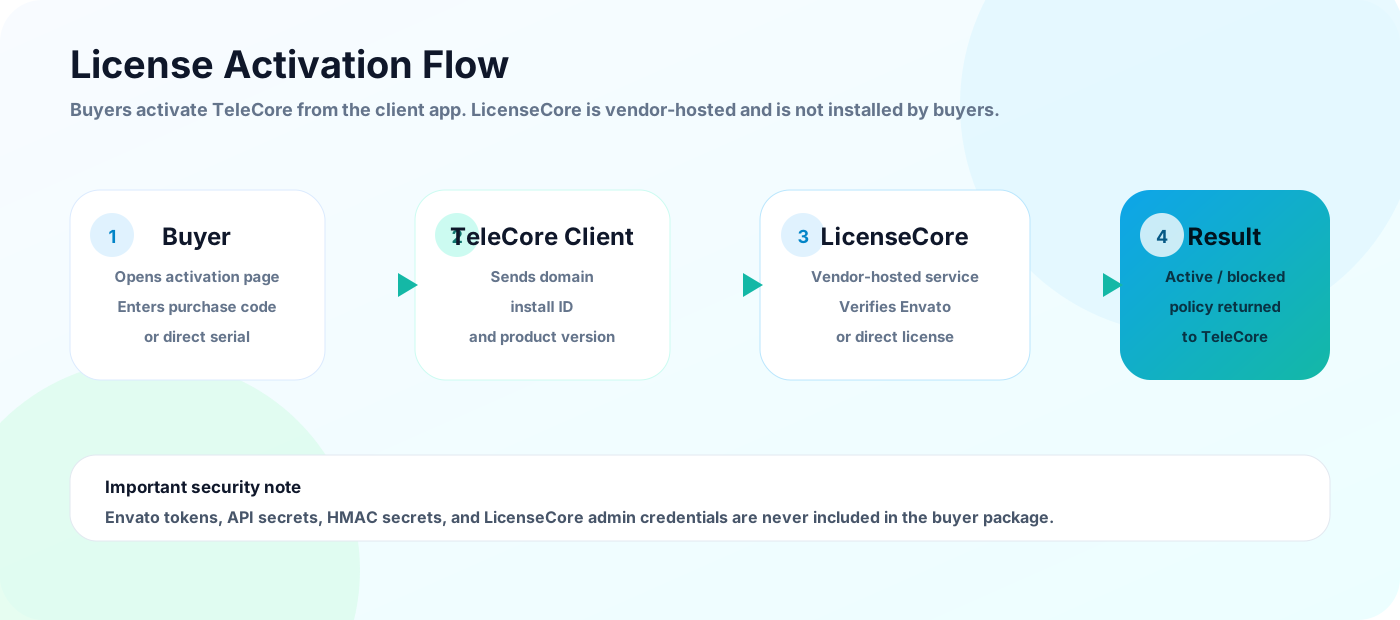
TeleCore uses a client-side activation screen connected to the vendor-hosted LicenseCore service.
Important LicenseCore note
Buyers do not install LicenseCore Server. LicenseCore is vendor-hosted. Buyers only enter their purchase code or direct license serial in the TeleCore activation page.
Envato token is never placed inside the buyer package.
Installation Readiness
Pre-Installation Environment Preparation
Before running the TeleCore installer, prepare the server environment first. This prevents common buyer-side issues such as database connection failures, missing server tools, missing writable directories, or Laravel HTTP errors caused by unreadable environment files.
Required server tools
php -v
composer --version
mysql --version
unzip -v
zip -v
curl --version
openssl version
Protected test/demo installs
If your test or demo installation uses Basic Auth, install htpasswd first:
sudo apt-get update
sudo apt-get install -y apache2-utils
command -v htpasswd
Laravel writable directories
The web server user must be able to write to storage and cache folders:
sudo chown -R www-data:www-data storage bootstrap/cache
sudo chmod -R ug+rwX storage bootstrap/cache
Environment file permissions
The .env file must be readable by the PHP-FPM/web server user. On Ubuntu/Nginx/PHP-FPM:
sudo chown root:www-data .env
sudo chmod 640 .env
Why this matters: if PHP-FPM cannot read .env, Laravel may show an HTTP 500 error such as No application encryption key has been specified, even if the key exists when checked from the command line.
First Login & Dashboard
What the dashboard is for
The dashboard gives a quick view of your workspace: campaigns, sending status, accounts, queues, logs, and operational alerts.
KPIsQuick counters for campaigns, targets, accounts, messages, and logs.
Recent activityShows recent actions, campaign progress, and system events.
Health checksHelps you see if queue, worker, scheduler, and license state need attention.
Telegram API Credentials
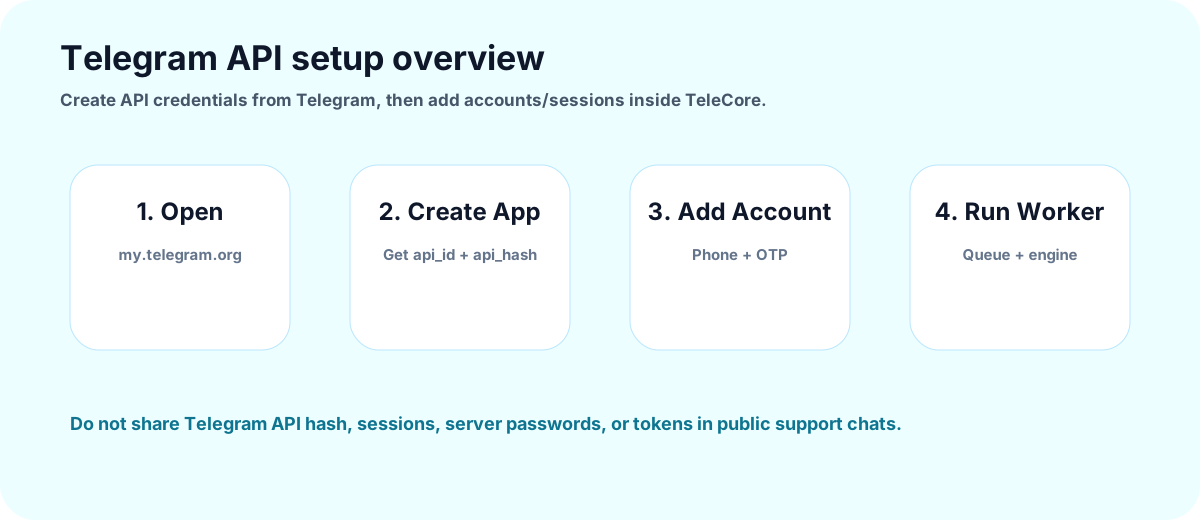
TeleCore uses one global Telegram API ID and API Hash for the installation. These credentials are configured once by the SaaS admin or server owner, then all Telegram sessions use the same global Telegram API configuration during OTP / 2FA login.
Global credentials, not per-session
Each Telegram account/session still needs its own phone login, OTP, and optional 2FA password. However, every session does not need a separate API ID/API Hash.
- Go to
my.telegram.org.
- Login using your Telegram phone number.
- Open API Development Tools.
- Create a new application.
- Copy
api_id and api_hash.
- Save them from Admin → Telegram API or your private server configuration.
Telegram safety notes
- Do not share your Telegram API hash publicly.
- Do not share Telegram session files.
- Do not send spam or violate Telegram rules.
- Use realistic rate limits, good targeting, and compliant messaging behavior.
Support may ask whether the API ID exists and whether the hash is saved, but support should never ask you to post the full API hash in public chat.
Critical Telegram Bridge Engine
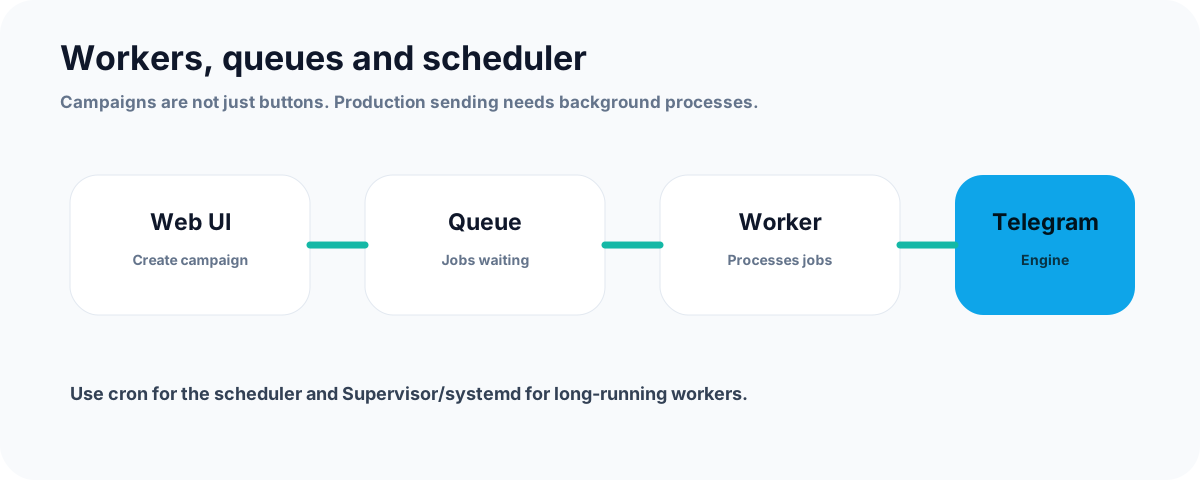
The Laravel web panel publishes Telegram actions to Redis/database queues. The Python Telegram Bridge Engine performs the real Telegram work: Send OTP, Verify OTP, Submit 2FA, connect sessions, process campaign actions, and keep live Telegram operations running.
DevelopmentYou may run the engine manually from a terminal while testing.
ProductionRun the engine under Supervisor, systemd, or another process manager. Do not rely on an open SSH terminal for 24/7 operation.
TroubleshootingIf OTP does not arrive, verify Telegram API credentials, engine service status, Redis/database connectivity, and engine logs.
Main Menu Operating Guide
This section explains what each important page is for, what to add there, and how to use it.
Telegram Accounts / Sessions
PurposeAdd and manage Telegram accounts used by campaigns and inbox operations.
What to addPhone number, API credentials if required, OTP verification, and optional account notes.
How to useConnect accounts, verify status, assign accounts to campaigns, and monitor health.
In public demo, real Telegram connection is disabled for safety.
Campaigns
PurposeCreate outreach campaigns that use templates, target lists, and selected Telegram accounts.
What to addCampaign name, message template, target list, selected accounts, sending mode, and schedule options.
How to useCreate campaign, review targets, queue jobs, monitor progress, and check logs.
Typical campaign flow
- Create or import a target list.
- Create a message template.
- Create a campaign and select the target list/template.
- Select sending accounts or routing mode.
- Start/queue the campaign.
- Monitor queue, logs, and failed items.
Templates
PurposeSave reusable message content for campaigns and replies.
What to addTemplate name, message body, placeholders, and category.
How to useSelect templates when creating campaigns or replying from inbox.
Keep templates clear, compliant, and relevant. Avoid spam-like wording.
Target Lists
PurposeOrganize campaign recipients or group targets.
What to addContacts, usernames, group links, labels, notes, or CSV imports depending on your setup.
How to useAttach a target list to a campaign and track sent/failed results.
Inbox & Replies
PurposeReview incoming messages and manage replies from connected sessions.
What to addReply templates, operators, ownership rules, and notes.
How to useOpen a thread, review the conversation, reply if permitted, and mark handled.
Analytics, Logs & Exports
PurposeUnderstand campaign results, failures, queue activity, and system events.
What to checkSent count, failed count, queue status, account errors, and license events.
How to useFilter logs, review errors, export allowed data, and fix repeated failures.
SaaS Admin
PurposeManage subscribers, workspace rules, admin permissions, and SaaS-level settings.
What to addSubscriber accounts, roles, permissions, plan limits, and workspace ownership.
How to useCreate users, assign permissions, monitor usage, and review workspace activity.
End Users / Session Approvals
PurposeAllow controlled access for client users and approve session-related actions.
What to addClient user accounts, permissions, approval rules, and ownership settings.
How to useReview approval requests, approve/deny safely, and keep each client isolated.
Brand Settings & Landing CMS
PurposeCustomize public-facing brand elements and landing page sections.
What to addLogo, favicon, brand colors, hero text, feature blocks, FAQ, and contact links.
How to useUpdate content, preview the landing page, and keep buyer-facing copy professional.
Proxy Manager & Engine Settings
PurposeManage operational connection and engine-related settings where available.
What to addProxy records, engine options, routing rules, and operational limits if enabled.
How to useUse carefully. Wrong settings may stop account connection or sending operations.
Profile & Security
PurposeManage your account name, email, and password.
What to updateUse a strong password and keep admin email secure.
How to useChange profile information from a private admin session only.
Workers, Queue & Scheduler
Queue worker
Campaign work and background jobs need a queue worker. It must be kept alive in production.
php artisan queue:work --tries=3 --timeout=120
Scheduler
The scheduler should run every minute using cron.
* * * * * cd /path/to/telecore && php artisan schedule:run >> /dev/null 2>&1
Python / Telegram engine
Python processes do not run forever by themselves. For production, configure them using Supervisor, systemd, or your hosting process manager.
Troubleshooting Center
A practical list of common buyer issues and how to fix them.
500 Server Error Critical
Likely causes: missing APP_KEY, wrong DB credentials, missing PHP extension, unwritable storage, or cached bad config.
php artisan key:generate
php artisan optimize:clear
php artisan config:clear
php artisan cache:clear
Check storage/logs/laravel.log after removing passwords, tokens, and secrets.
404 after upload Routes
Likely causes: wrong document root, missing rewrite rules, stale route cache, or wrong upload folder.
php artisan route:clear
php artisan optimize:clear
php artisan route:list
Make sure the web server points to the public directory.
Blank page UI
Check Laravel log, PHP error log, browser console, frontend assets, storage permissions, and missing PHP extensions.
Composer SSL / CA certificate error Composer
If Composer fails with cURL error 60 or SSL certificate problem, configure a valid CA certificate bundle for Composer/cURL HTTPS requests.
composer diagnose
composer config -g cafile "C:\\path\\to\\cacert.pem"
PHP zip / unzip / 7-Zip missing Archive
Enable PHP zip extension or make sure unzip / 7-Zip is available on the server. Without archive support, package extraction may fail.
Database connection failed Database
Check DB_HOST, DB_DATABASE, DB_USERNAME, DB_PASSWORD, and confirm MySQL/MariaDB is running.
Storage permission error Permissions
Make sure storage and bootstrap/cache are writable by the web server user.
chmod -R 775 storage bootstrap/cache
Queue jobs not running Worker
Start the queue worker and keep it running using Supervisor/systemd/hosting process manager.
Scheduler not running Cron
Add Laravel scheduler cron and verify it runs every minute.
Python worker stopped Engine
Check Python version, virtual environment, required packages, worker logs, and service manager.
Telegram sessions do not connect Telegram
Check API credentials, phone verification flow, session path permissions, worker status, and network restrictions.
License activation fails Activation
Check the activation code, domain, server HTTPS connectivity, and whether the license service is reachable.
License says domain locked License transfer
The license is already active on another domain. To move it to a new domain, the old activation must be deactivated first by the vendor license system.
Public demo blocks actions Expected
The public demo shows the real interface but blocks real sending, Telegram sessions, exports, license actions, token visibility, and destructive actions.
Support Bot Knowledge Base
This documentation is structured so it can later power a Telegram support bot. The bot should answer from approved documentation, ask for safe diagnostics, and escalate sensitive issues to human support.
Recommended future architecture: Telegram Webhook Bot hosted on your server, connected to this documentation and a curated support FAQ.
Never ask customers for
- Server passwords
- API tokens or Envato tokens
- Full purchase codes in public chat
- Full
.env file
- Telegram API hash or session files
Safe information to request
- Screenshot of the error
- Exact error message
- Installation step
- Hosting type and PHP version
- Sanitized log lines without secrets
Security Notes
- Keep
APP_DEBUG=false in production.
- Never expose
.env.
- Use HTTPS in production.
- Do not publish tokens, passwords, or full purchase codes.
- Keep workers under a reliable service manager.
Support Policy
Support covers installation guidance, activation issues, documented configuration, and package-related bug reports.
Support does not include custom development, unsafe handling of secrets, or full third-party server administration as part of the standard package support.
If you need custom development, advanced server administration, private setup assistance, or special integration work, please contact us to discuss a separate paid service.
TeleCore Support
Have a problem? Talk to Support Bot.
Get quick help for installation, license activation, domain transfer, workers, queue, demo mode, and common errors.